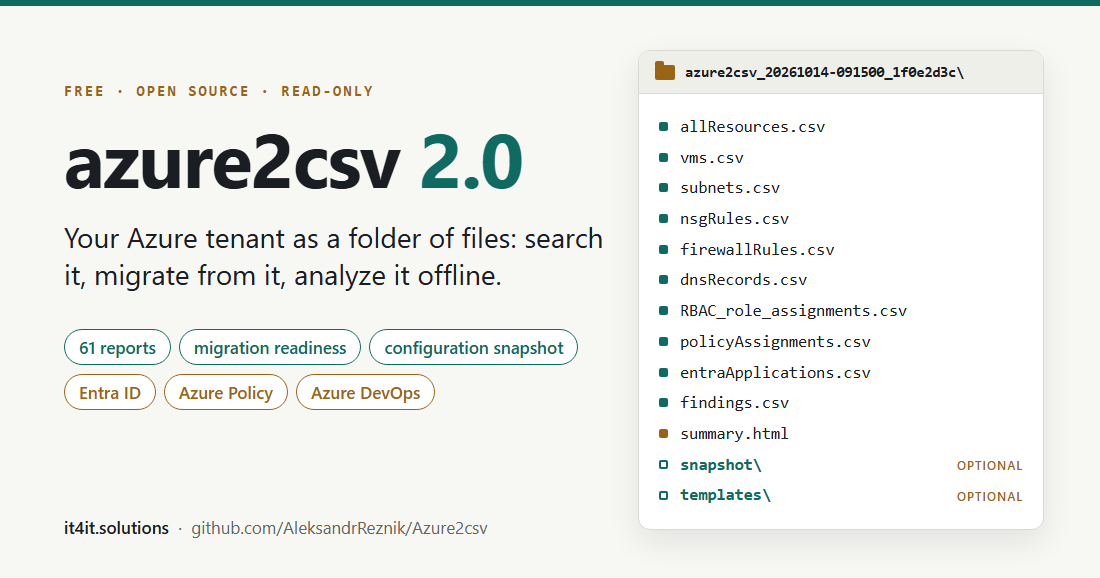
In October 2021 I published azure2csv, a PowerShell script that writes every Azure resource to a CSV file. At the end of that post I wrote that I had more than 10 additional reports and would publish them later. It took a while, but here they are, and a lot more: azure2csv 2.0 has 61 reports. It covers Entra ID, Azure Policy and Azure DevOps, and it answers the questions every migration project starts with.
The idea is the same as in 2021: turn a whole Azure tenant into a folder of plain files that you can open, search, keep and share. You need no portal, no query language and no access to Azure to read them.
Three things I use the output for
1. A record of the environment that you can search later
Every run writes one folder, named with the date and time. Keep these folders. Each one shows what the environment looked like on the day the script ran.
Months later the questions come:
- Which machine had the address 10.20.3.14?
- Where was
vm-sap-oldconnected, and which disks did it have? - Who had access to that resource group last spring?
The VM may be long gone. The portal and Resource Graph only know what exists today. The old folder still knows.
Open the Excel workbook of that run, press Ctrl+F, set “Within” to “Workbook” and type the address or the name. You find it on every sheet where it appears: the VM, its network interface, the NSG rules, the disks, the backup item, the role assignments. (The workbook is built when the ImportExcel module is installed. Without it, open the CSV files; they open in Excel too.) To search every file of every run you have kept, one line of PowerShell is enough:
Get-ChildItem .\azure2csv_* -Recurse -Include *.csv, *.json, *.bicep | Select-String -SimpleMatch '10.20.3.14' -ListFor this kind of question I find an old inventory more convenient than the logs, because the logs answer a different question. The activity log says who did what and when, and Azure keeps it for 90 days unless you export it. Resource Graph keeps the change history of resources for 14 days. Neither is made to show what a VM that was deleted last year looked like. An inventory folder from last year is. What it cannot tell you is who made a change, or what happened between two runs. So keep both: the logs for “who and when”, the inventory for “what was there”.
The inventory only knows the days on which it ran, so run it regularly: once a month is a good start, and always before and after a migration wave or a big clean-up. The script reuses the Az sign-in that is already active, so it can also run from a scheduled task or a pipeline. Add -Zip and keep the zip files. They are text, so they compress well.
2. Migrations: as much metadata as the script can read
A migration is mostly a question of metadata. Before anything moves you need sizes, addresses, DNS records, firewall rules, dependencies, identities, role assignments, locks, policies and backup settings, and you need to know which of them will not survive the move. So the goal of this script is easy to say: collect as much metadata as a reader is allowed to see.
Today that is 61 reports as CSV files. On request the script adds the JSON of every resource with its properties uncut, the child resources that the resource list does not show (blob containers, SQL firewall rules, queues, the DNS zone groups of private endpoints and more), Azure’s own template of every resource group, the code stored in Azure resources, and the Azure DevOps organizations around them.
The folder you create before a migration wave is also your reference afterwards. When something does not work in the new place, the question “how was this configured before we touched it?” has an answer.
It does not cover everything. Azure has hundreds of resource types and they keep changing. If you run the script and something you need is missing, tell me: open an issue on GitHub or write to me, name the resource type and the setting, and I will try to add it.
3. Analysis with AI, offline: the AI never gets access to your Azure
An AI assistant can help a lot with the questions an inventory raises: find what does not fit, explain how the pieces belong together, turn a list into a plan. The usual way to let one look at Azure is to connect it to the tenant: an app registration, a role assignment, a tool that runs commands for you. Many security teams say no to that, and I understand them.
With azure2csv the AI never touches Azure. You run the script yourself, with read-only rights. The result is a folder of plain files: CSV, JSON and Bicep. You give that folder to the assistant and ask your questions. It has no credentials, it cannot call an Azure API and it cannot change anything. It works on a copy.
If the model runs on your own computer, nothing leaves your network. If you use a hosted AI service, remember that the files themselves go to that service, and they describe your environment in detail. In that case run the script with -Mask first: names, IDs, users, domains and public IP addresses are replaced with consistent pseudonyms, and the mapping file stays with you. (A masked run leaves out the JSON snapshot and the templates.)
Questions that work well:
- Which subnets have no NSG and no route table?
- List everything that refers to 10.20.3.14 or to
vm-app01. - Group the VMs into migration waves by subnet and dependency, and explain the grouping.
- Compare the folder from March with the folder from June: what was added, removed or changed?
- Which role assignments point to accounts that no longer exist?
- Explain this firewall policy in plain language.
Two hints. Tell the assistant to start with coverage.csv, which says what was collected and what was skipped, and with snapshot\index.csv, which lists every JSON file. And treat an answer as a lead, not as a fact: the files are right there, so check the rows it points to.
Why a new version
I have used the original script at the start of almost every Azure project since 2021. Over time I kept adding reports for my own work: network security, route tables, storage, backup, runbooks, and more. Two things always hurt:
- Speed. The script made several API calls per resource, so a large tenant took hours.
- Migration questions nobody answers. Inventory tools list what you have. A migration needs to know what can be moved, what breaks when a subscription moves to another tenant, what is retiring and which policies will block the target design.
What is new in 2.0
- Minutes instead of hours. Data comes from Azure Resource Graph and the REST APIs. The only requirement is the
Az.Accountsmodule. It runs on Windows PowerShell 5.1, PowerShell 7 and Azure Cloud Shell. - 61 reports in 7 groups: inventory, network, compute, data, operations, governance and Entra ID. Among them:
- VNets, subnets, peerings, NSG rules and routes
- load balancers, application gateways, firewalls with every rule, VPN and ExpressRoute gateways, DNS records
- a VM migration profile (size, vCPU/RAM, OS, disks, agents, backup) and scale sets
- AKS, App Service, Container Apps, SQL, Cosmos DB, PostgreSQL and MySQL, storage and Key Vault
- backup items, Automation runbooks, alert rules and Advisor
- Migration readiness:
- For every resource, whether its type can move to another resource group, subscription or region. This comes from Microsoft’s official table.
- References that cross resource groups or subscriptions (resources that must move together).
- Management locks.
- A tenant-transfer impact report: managed identities, Key Vaults, RBAC, Entra-integrated services and policy that break when a subscription moves to another Entra tenant.
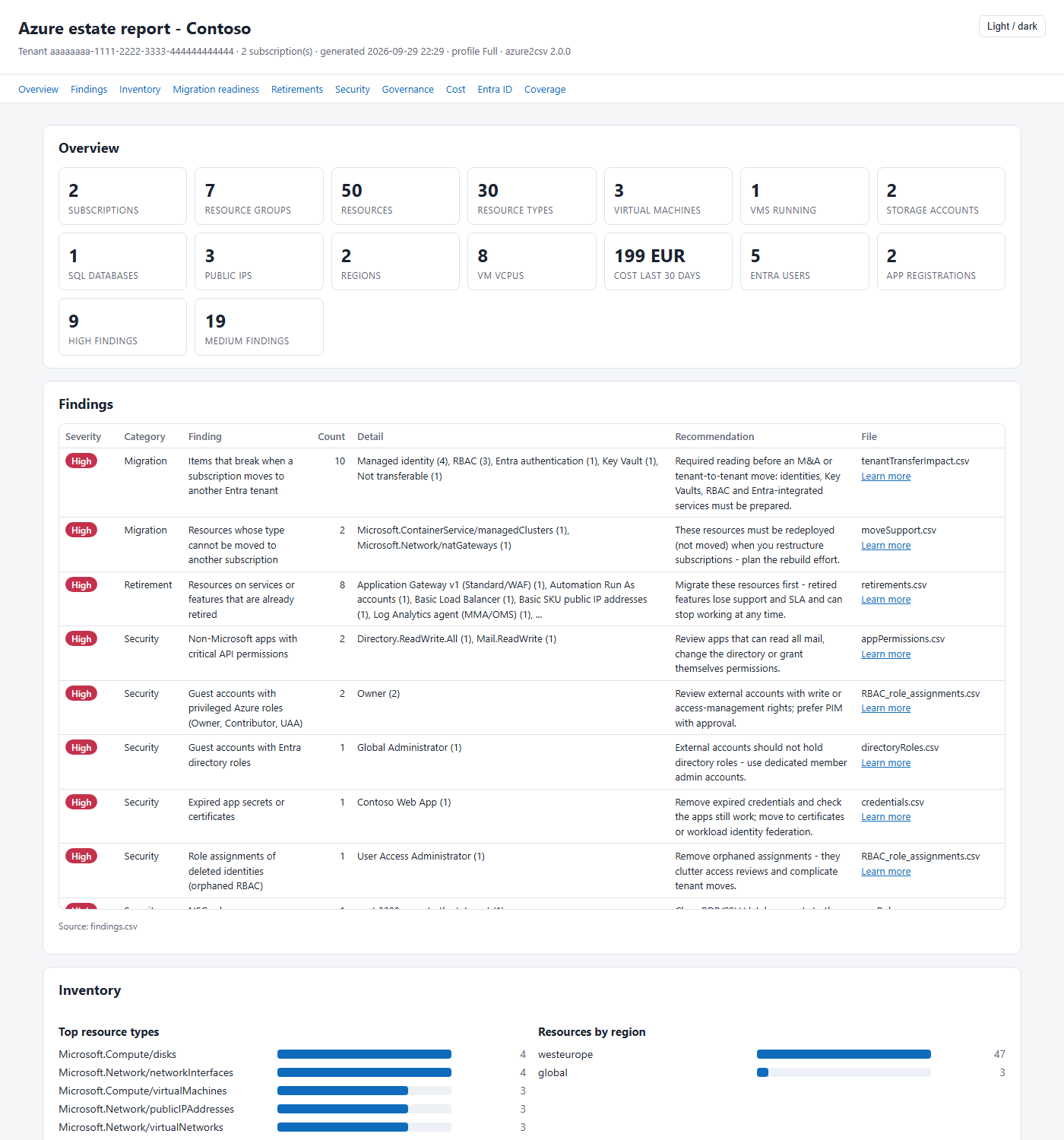
- Azure Policy and management groups: the hierarchy, assignments (including inherited ones), initiatives, exemptions and compliance. It also flags “Allowed locations”, “Allowed resource types” and “Allowed VM sizes” policies that restrict your migration targets, even when they are wrapped in an initiative.
- Access: role assignments with resolved names, who is only eligible for a role (PIM) and which assignments end, deny assignments, Azure Lighthouse delegations and Defender for Cloud plans.
- Entra ID:
- users and guests (stale accounts when sign-in data is available)
- groups with their owners, administrative units and directory settings
- app registrations with secret and certificate expiry
- enterprise apps and API permissions with risk flags
- managed identities
- directory roles and custom roles
- Conditional Access policies, when the script runs with a sign-in that may read them
- Azure DevOps: when your subscriptions point to Azure DevOps organizations (billing, Managed DevOps Pools, pipeline agents) or you name them with
-AdoOrganization, the script inventories them with your normal sign-in, into one ADO folder per organization:- projects, Git and TFVC repositories and pipelines
- service connections with their Azure identity, secret expiry and roles
- agents, users and licenses (unused paid licenses show up)
- integrations: extensions and service hooks
- Azure Artifacts feeds and every package version, with download counts
- Code export: optionally, all the code that lives inside Azure resources goes to a code folder: runbooks, Logic Apps, Data Factory pipelines, template specs, deployment scripts, custom policies and roles, workbooks, Sentinel rules and API Management policies and APIs. With publish rights it also downloads the files of your Function and Web Apps. Useful before any migration: you see what has to move.
- Retirements and waste: resources hit by Azure retirements, with dates (Basic public IPs and load balancers, unmanaged disks, TLS 1.0/1.1, the MMA agent, old runbook runtimes and more), plus orphaned resources that still cost money.
- Findings: about 48 checks with severity, count and a recommendation.
- A self-contained HTML dashboard (no internet needed, light and dark theme), plus an Excel workbook when the ImportExcel module is installed.
Quick start
The fastest way is Azure Cloud Shell (PowerShell), where the Az modules are already installed:
Invoke-WebRequest https://raw.githubusercontent.com/AleksandrReznik/Azure2csv/main/azure2csv.ps1 -OutFile ~/clouddrive/azure2csv.ps1
~/clouddrive/azure2csv.ps1 -Profile Quick -OutputPath ~/clouddrive -Zip
On your own machine:
Install-Module Az.Accounts -Scope CurrentUser
Connect-AzAccount
.\azure2csv.ps1
The script is read-only. It never changes anything in Azure or Entra ID. Reader on the subscriptions is enough for the Azure part. For Entra ID, a normal member user can read most of it, and Global Reader gives full coverage.
It is also experimental: read the disclaimer at the end of this post before you rely on its results.
Choose what you need
You do not have to run everything. Pick a profile or name the reports:
.\azure2csv.ps1 -Profile Migration                              # migration assessment
.\azure2csv.ps1 -Reports RBAC, Policy, ManagementGroups         # governance only
.\azure2csv.ps1 -Profile Standard -AddReports Cost -SkipReports Entra
.\azure2csv.ps1 -ListReports                                    # show all reports
Profiles: Quick (Resource Graph only, minutes), Standard (default), Full, Migration, Security and Governance.
Migration readiness
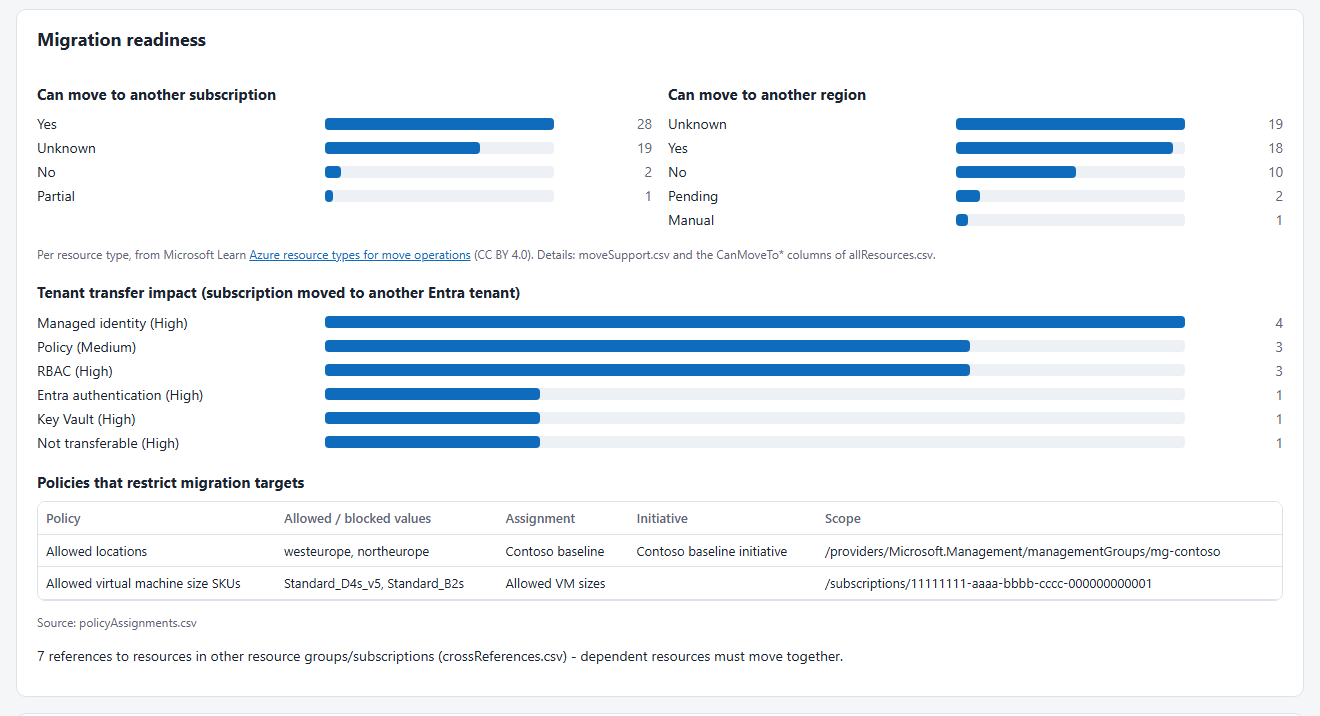
This is the part I use most in projects. Before you promise “we will just move the subscription”, check:
- how many resources cannot move to another subscription or region;
- which resources depend on resources in other resource groups;
- what the tenant transfer will break (managed identities, Key Vault access policies, SQL with Entra authentication, AKS and more);
- which policies will block the target regions or SKUs.
A configuration snapshot: a starting point for rebuilding
CSV files are good for people. They are not enough when the question is “could we build this again?”. Three optional reports go deeper:
.\azure2csv.ps1 -AddReports Snapshot, ArmTemplates, ChildResources- Snapshot writes one JSON file per object, in a folder path that mirrors its Azure ID. The properties are not cut the way a spreadsheet cell is. It includes DNS records, firewall rules, backup policies, role and policy assignments, locks and diagnostic settings.
- ArmTemplates saves Azure’s own “Export template” for every resource group, as ARM JSON and as Bicep, together with the list of what Azure could not export.
- ChildResources reads what the resource list does not show: blob containers and file shares, SQL firewall rules, Service Bus queues, Cosmos DB containers, Automation schedules, private endpoint DNS settings and much more.
I want to be exact about what this is. It is a configuration snapshot: documentation, something to compare next month, and the material to rebuild from by hand or with infrastructure as code. It is not a backup. It holds no data and no secrets (for Key Vault only the names and expiry dates), an exported template usually needs editing before it deploys, and what runs inside a VM or a Kubernetes cluster is not part of it.
Governance and security
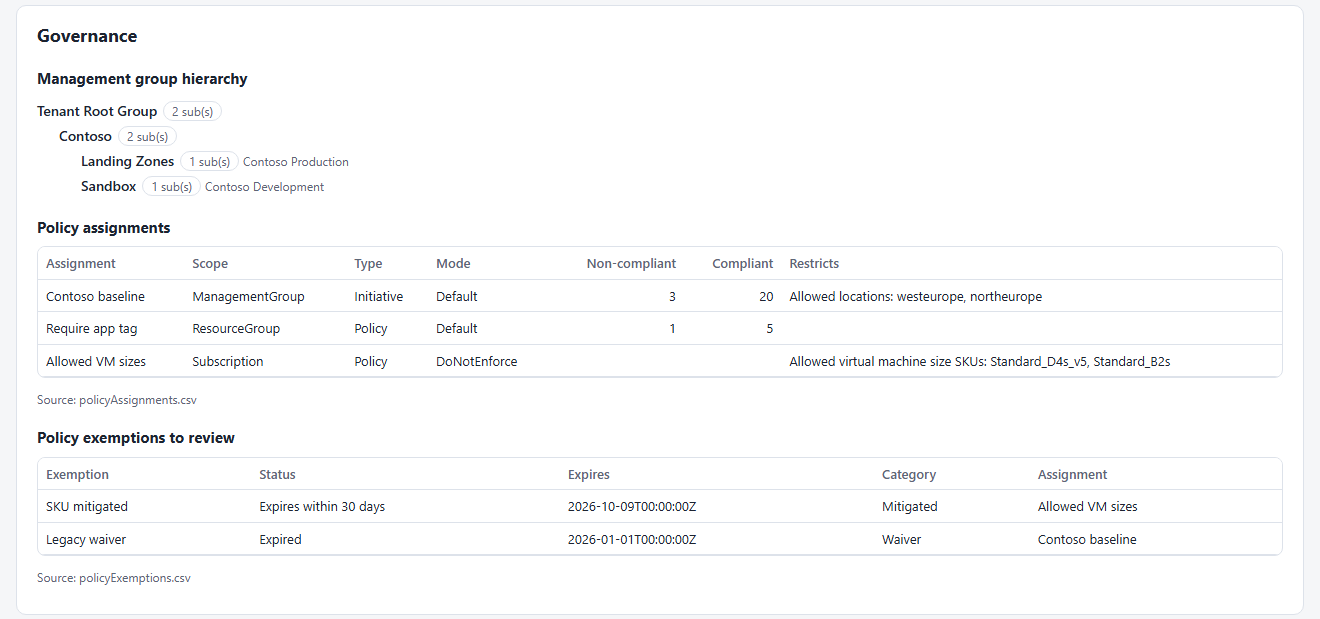
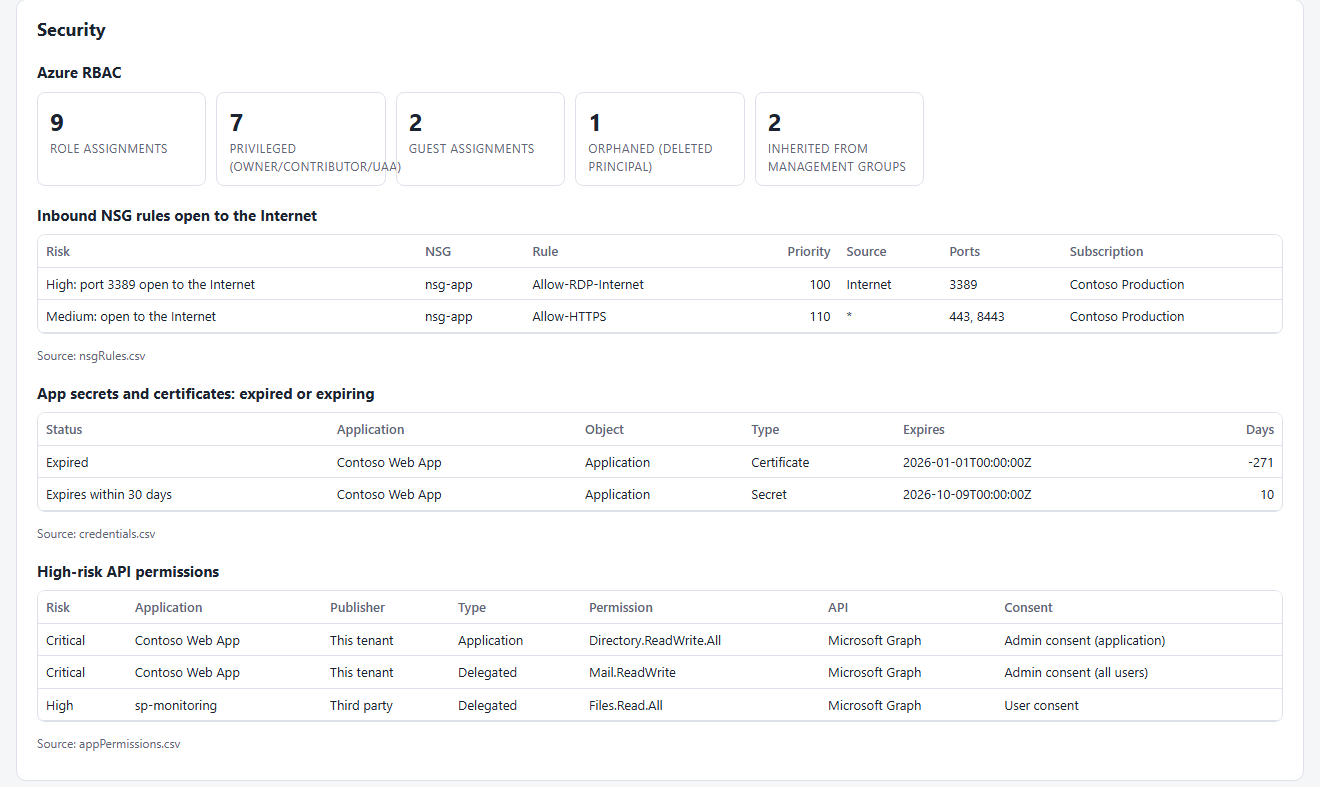
The governance section shows the management group tree, policy assignments with compliance and the exemptions to review. The security section shows:
- NSG rules that open RDP/SSH or databases to the Internet
- orphaned and guest role assignments
- expiring app secrets
- high-risk API permissions
Share results safely with -Mask
Run with -Mask and every name, ID, user, domain, public IP and tag value is replaced with a consistent pseudonym. For example, vm-app01 becomes vm-3f9c2a1b7e in every file. Private IP ranges, resource types and regions are kept, so the report stays useful. The mapping file stays with you, outside the zip.
So you can send the masked zip to a colleague, to a hosted AI service or to me, and get a review without sharing your real names.
Coming from version 1?
Your old commands still work (-tenantID_Param, -subID_Param and the -create*report switches). The first 35 columns of allResources.csv have the same names and order. Several v1 bugs are fixed:
- diagnostic settings that were carried over from the previous resource
- non-English characters that turned into “?”
- missing IP addresses when a NIC was in another resource group
The full list is in the changelog.
Disclaimer
azure2csv is experimental. I publish it as is, without warranty of any kind (it is under the MIT license), and I take no responsibility for its results or for any decision or change made based on them.
Everything the reports conclude is a suggestion, not a verdict: findings, recommendations, risk flags, move support, retirement dates, orphaned resources, tenant-transfer impact and exported templates. Verify it manually, in the Azure portal and in Microsoft’s documentation, before you act on it. The script only reads, but what you do with its output is your decision. Every run prints this disclaimer at the start and puts it at the top of the HTML report and of the Excel workbook.
Download
azure2csv is free and open source (MIT): github.com/AleksandrReznik/Azure2csv. The repository also contains sample reports built from a fictional tenant, so you can see the output before you run it. If a resource type or a setting you need is missing, open an issue there.
Need help with the next step?
An inventory is the first step. If you are planning an Azure migration, a tenant-to-tenant move after a merger, a landing zone or a clean-up of an estate that grew for years, I can help. The same applies if the report raised more questions than answers. Write to me at aleksandr@reznik.lt.